
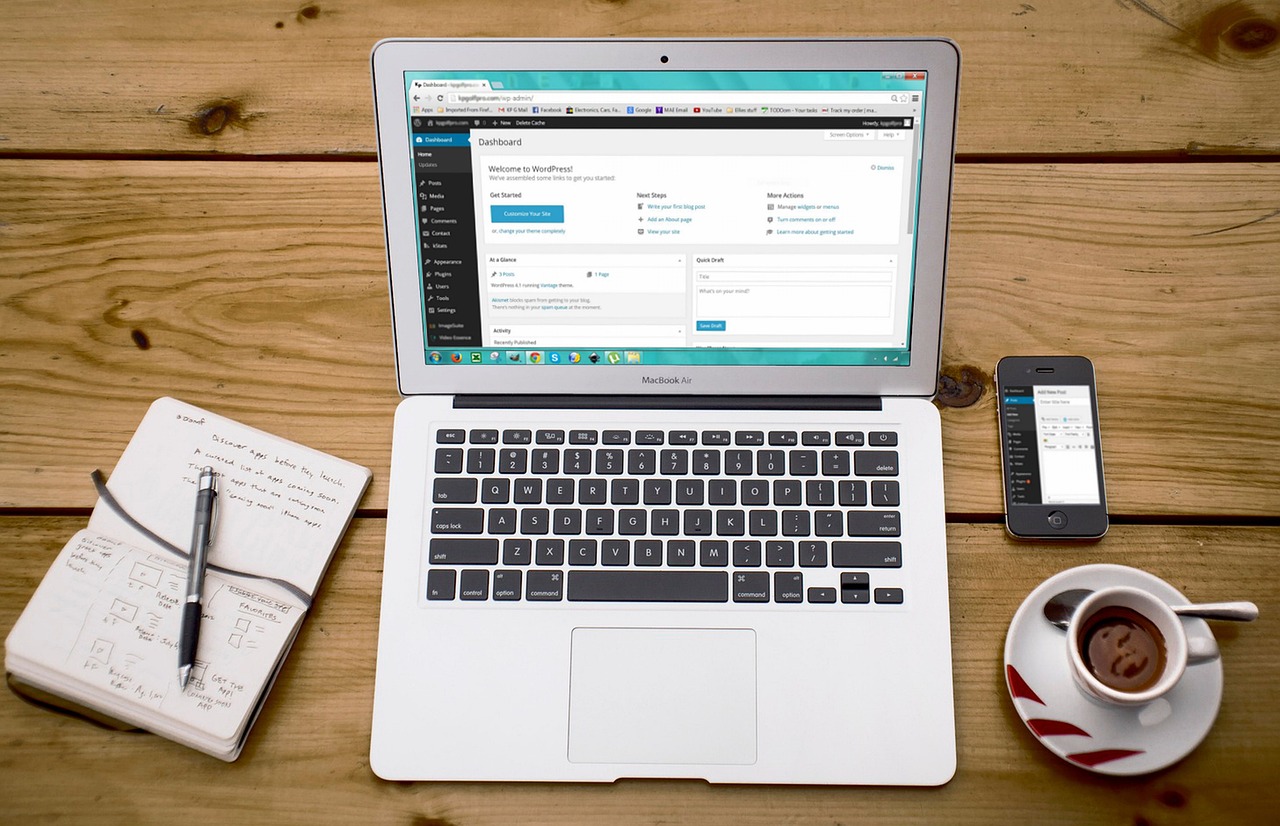
So… you want to make a website like this one?
Good news: You can.
Better news: You don’t need to know a single line of code to do it.
In this post, I’ll walk you through a rough guide on how you can build your own clean, simple portfolio site using WordPress and one of my favorite beginner-friendly themes: GeneratePress.
Step 1: Get the Basics Set Up
Before diving into design, here’s what you need:
- A domain name (like yourname.com)
- A web hosting plan (I recommend ChemiCloud, SiteGround, or Bluehost for beginners)
- A fresh install of WordPress (your hosting provider usually does this for you)
Once you’ve got WordPress installed, it’s time to move onto the fun part—designing your site.
Step 2: Install the GeneratePress Theme
GeneratePress is a lightweight, fast, and flexible theme—perfect for a portfolio.
To install:
- Go to your WordPress dashboard
- Navigate to Appearance > Themes
- Click Add New and search for “GeneratePress”
- Click Install, then Activate
You can stick with the free version for now, but if you want more design control, the premium version is worth looking into later.
Step 3: Customize Your Site
Now it’s time to make the site yours.
Go to Appearance > Customize, where you can change things like:
- Site title and logo
- Colors and fonts
- Layout (sidebar, footer, etc.)
Keep it clean and easy to navigate—your work should be the star of the show.
Step 4: Create Your Pages
Here are the basic pages I recommend for a simple portfolio site:
- Home – A welcome message and maybe a few highlights of your best work
- Portfolio / Projects – Show off what you’ve built (screenshots, links, quick descriptions)
- About Me – Share a bit of your story and your approach to work
- Contact – Add a contact form (use the WPForms or Contact Form 7 plugin)
Use Pages > Add New in the WordPress dashboard to create each of these.
Step 5: Add a Portfolio Section
There are a few ways to show off your projects:
- Use Gutenberg blocks (WordPress’s default editor) to add images, text, and buttons
- OR, install a plugin like GenerateBlocks (pairs great with GeneratePress) for more flexible layouts
Each project can have its own section or link to a separate page with more details.
Step 6: Final Touches
- Add a menu (Appearance > Menus) to help people navigate your site
- Set your homepage (Settings > Reading > “Your homepage displays”)
- Install an SEO plugin like Rank Math or Yoast SEO to help your site get discovered
- Don’t forget responsive design—make sure your site looks good on mobile
Bonus Tip: Keep It Simple
It’s tempting to overdesign, but simplicity wins—especially in portfolios. Let your work speak for itself.
Ready to Launch?
Once you’re happy with your layout, it’s time to show the world. Hit that publish button and start sharing your new portfolio with potential clients, employers, or friends.
Still stuck?
Take a look around Nobikachu for more ideas—or ask ChatGPT! It’s like having a web buddy that never sleeps.